How the configuration works
oxb is configured from the panel, not from a file: categories, how changes apply, save, reset, import and share.
oxb has no `config.lua`: all the configuration lives in the panel, in Server → Configuration. Every server has its own and the changes reach the resource in seconds, without restarting.
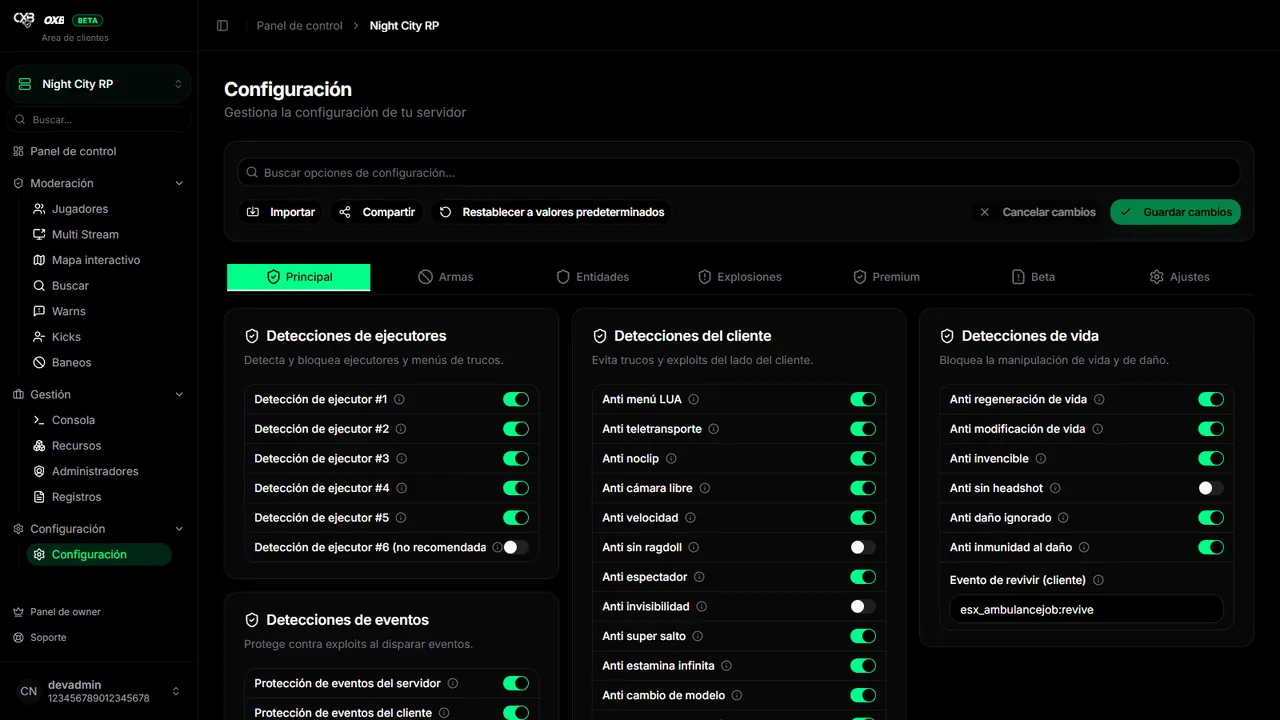
The seven categories#
| Category | What it contains | Options |
|---|---|---|
| Main | Executors, client (movement, camera, stamina…), health, events and miscellaneous. | 37 |
| Weapons | Weapon detections, combat cheats and projectiles. | 38 |
| Entities | Vehicles, peds and objects: lists, limits and detections. | 40 |
| Explosions | Explosions and particles. | 16 |
| Premium | Extra protections (vehicle control, sounds, forced ragdoll, vehicle bombs). | 4 |
| Beta | Experimental functions: injection, magneto, attaching vehicles and silent aim. | 12 |
| Settings | Discord webhooks, ban system, connections, system and voice. | 33 |
Save, reset, import, share#
- When you change something a bar appears to Save changes (or Cancel changes). Nothing reaches the server until you save.
- Reset returns everything to the default values.
- Import applies a shared configuration by its ID (for example
ws1a2b3c4). - Share publishes your configuration and gives you its ID; you can make it public to appear in the Library.
- The search at the top finds any option by name.
Option types#
| Type | How it is edited |
|---|---|
| Switch | Turns the detection on or off. |
| Number | A threshold or a limit (distances, seconds, amounts). |
| Text | Messages, prefixes or webhook URLs. |
| List | Several values (for example ignored scripts or forbidden vehicles). |
| Selection list | Choose from a catalog (weapons, vehicles, explosions…). |
Every detection also has an action (warn, kick or ban). It is explained in Actions and flags.
Last updated: November 11, 2026